


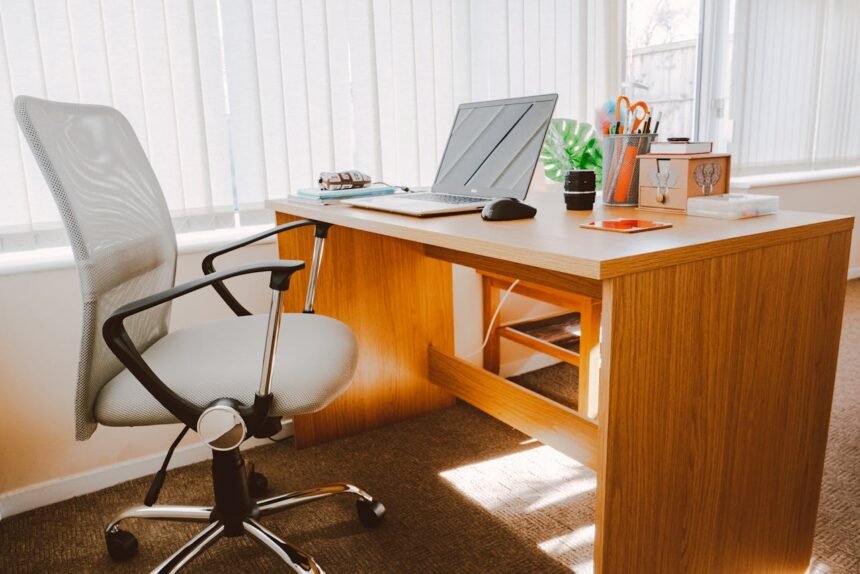
In the wake of the global shift toward home offices, a silent epidemic has emerged alongside the rise of telecommuting. It isn’t a virus, but a biomechanical consequence of modern convenience: Tech Neck. As living rooms and kitchen tables converted into makeshift offices, the physiological toll of poor posture began to mount. For the millions now operating from home, establishing a proper ergonomic desk setup remote work plan is no longer a luxury—it is a medical necessity.
While the flexibility of remote work offers undeniable lifestyle benefits, it often lacks the regulatory oversight of corporate environments, leading to makeshift setups that wreak havoc on the cervical spine. This comprehensive guide explores the science of ergonomics, the dangers of prolonged poor posture, and actionable steps to build a workspace that protects your long-term health.
The Physiology of Tech Neck: Understanding the Risk
“Tech neck,” clinically referred to as cervical kyphosis or repetitive strain injury, occurs when the neck is held in a forward-bent posture for prolonged periods. To understand the severity, one must look at the biomechanics of the human head.
According to the Cleveland Clinic, the average adult head weighs between 10 and 12 pounds. When the head is in a neutral position, the spine supports this weight effortlessly. However, for every inch you tilt your head forward, the gravitational force on the neck increases dramatically. At a 45-degree angle—common when looking down at a laptop or smartphone—the force exerted on the cervical spine can reach nearly 50 pounds. This is equivalent to carrying a focused 50-pound weight around your neck for eight hours a day.
Over time, this pressure causes:
- Muscular Strain: The muscles in the back of the neck must contract continuously to hold the head up.
- Disc Herniation: Uneven pressure can cause the soft discs between vertebrae to bulge or rupture.
- Nerve Impingement: Misalignment can pinch nerves, leading to radiating pain or numbness in the arms and hands.
The Pillars of an Ergonomic Desk Setup
Creating a healthy workspace requires more than buying an expensive chair; it requires a holistic approach to how your body interacts with technology. The Occupational Safety and Health Administration (OSHA) provides specific guidelines for neutral body positioning that every remote worker should adopt.
1. The Chair: The Foundation of Support
Your chair is the most critical component of your setup. A kitchen stool or a soft sofa offers zero support for the lumbar curve of your spine. An ergonomic chair should support the natural ‘S’ curve of your back.
- Seat Height: Your feet should rest flat on the floor or a footrest. Your thighs should be parallel to the floor.
- Lumbar Support: The backrest should push gently against your lower back.
- Armrests: These should be adjustable so your shoulders remain relaxed, not hunched up toward your ears.
2. Monitor Placement: The Eye-Level Rule
The most common cause of tech neck in remote workers is a low monitor height. If you are working exclusively on a laptop on a flat desk, you are forcing your neck into flexion.
To correct this, the top third of your monitor screen should be at or slightly below eye level. This forces you to look straight ahead rather than down. If you use a laptop, utilizing a laptop stand and an external keyboard is essential. The Mayo Clinic emphasizes that proper monitor placement can significantly reduce neck and eye strain.
3. Keyboard and Mouse: Preserving the Wrists
Reaching too far for your mouse or typing on a keyboard that is too high causes the shoulders to rotate forward (rounding) and the wrists to bend (extension).
- Elbow Angle: Your elbows should be at an open angle (90 to 110 degrees).
- Neutral Wrists: Your hands should float above the keyboard without bending up or down.
- Mouse Position: Keep the mouse close to the keyboard to minimize shoulder rotation.
The Hidden Dangers of the “Laptop Hunch”
Laptops were designed for portability, not for eight-hour workdays. The inherent design flaw of a laptop is that the screen and keyboard are attached. You cannot have the screen at eye level and the keyboard at elbow height simultaneously without external accessories.
Research from Cornell University Ergonomics suggests that separating the input device (keyboard/mouse) from the visual display is the single most effective intervention for laptop users. Remote workers should invest in an external keyboard and mouse to bridge this gap.
Data Analysis: The Cost of Poor Posture
The impact of angle on spinal stress is non-linear. Small deviations in posture result in exponential increases in force. The following table illustrates the load placed on the cervical spine at various degrees of forward tilt.
| Head Tilt Angle | Effective Weight on Spine | Equivalent Object | Potential Health Consequence |
|---|---|---|---|
| 0 Degrees (Neutral) | 10-12 lbs | A Bowling Ball | Normal spinal function |
| 15 Degrees | 27 lbs | A Toddler | Early muscle fatigue |
| 30 Degrees | 40 lbs | 4 Gallons of Water | Chronic tension headaches |
| 45 Degrees | 49 lbs | A Sack of Cement | Disc compression & nerve pain |
| 60 Degrees | 60 lbs | A Microwave | Structural spinal degeneration |
Data interpolated from surgical studies on cervical spine stress.
Movement: The Antidote to Sedentary Strain
Even the perfect ergonomic desk setup remote work configuration cannot mitigate the damage of remaining static for eight hours. The human body is designed for movement. Sedentary behavior is linked not only to musculoskeletal issues but also to metabolic syndrome and cardiovascular disease, according to Harvard Health.
The Sit-Stand Revolution
Sit-stand desks have become popular, but they must be used correctly. Standing all day can lead to varicose veins and foot pain. The ideal ratio is often cited as 20:8:2—sit for 20 minutes, stand for 8 minutes, and move for 2 minutes.
If a standing desk is outside your budget, simple behavioral changes work wonders:
- Micro-breaks: Take a 30-second break to stretch every 30 minutes.
- Walking Meetings: If you don’t need to be on camera, take the call while walking around the room.
Vision and Lighting: Reducing Digital Eye Strain
Posture is often dictated by vision. If you cannot see your screen clearly, you will instinctively lean forward, compromising your spine. This is often exacerbated by Computer Vision Syndrome (CVS).
The American Optometric Association recommends the 20-20-20 rule: Every 20 minutes, look at something 20 feet away for at least 20 seconds. Furthermore, ensure your workspace is well-lit to avoid glare. Natural light is best, but avoid placing your monitor directly in front of a window where the contrast can cause squinting.
Actionable Habits for Remote Workers
Beyond hardware, behavioral psychology plays a massive role in ergonomics. We often get “in the zone” and forget to move for hours.
- Set Timers: Use apps or a simple kitchen timer to remind you to reset your posture.
- Hydrate: Drinking more water forces you to take more bio-breaks, ensuring regular movement.
- Stretch the Chest: Tech neck is often accompanied by tight pectoral muscles (from hunching). Doorway stretches can help open the chest and realign the shoulders.
For specific exercises, the National Institutes of Health (NIH) offers resources on stretching routines designed to counteract repetitive strain.
The Role of Blue Light and Sleep
While discussing screen time, it is vital to mention the impact of blue light on circadian rhythms. Poor sleep leads to muscle fatigue, making it harder to maintain good posture the next day. The Sleep Foundation suggests using software that warms the color temperature of your screen after sunset to protect your sleep quality.
Conclusion: Invest in Your Health
The transition to remote work is not a temporary trend; for many, it is the new normal. Continuing to work from a dining chair or a couch is a recipe for chronic pain and long-term disability. By implementing a proper ergonomic desk setup remote work strategy, you are doing more than just buying gear—you are investing in your future mobility and quality of life.
Don’t wait until the pain becomes unmanageable. Audit your workspace today. adjust your monitor, invest in a supportive chair, and remember: your next position is your best position.
Key Takeaways
- Elevate your screen to eye level to prevent cervical spine stress.
- Support your lower back to maintain the natural spinal curve.
- Follow the 20-20-20 rule to protect your vision and prevent leaning.
- Move frequently; ergonomics is about dynamic movement, not just static comfort.
For more information on workplace safety and health statistics, visit the Bureau of Labor Statistics or review guidelines from the Centers for Disease Control and Prevention (CDC).