


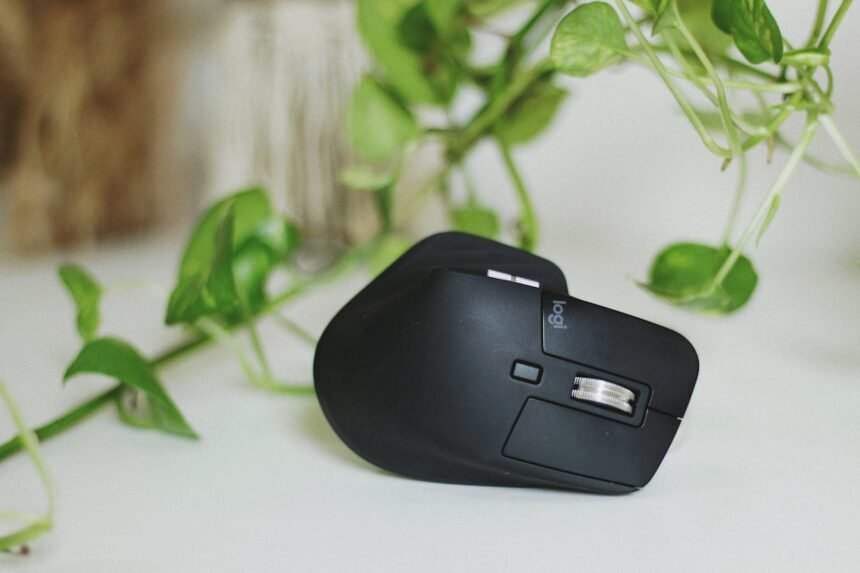
If you spend more than four hours a day at a computer, you have likely felt that familiar, dull ache in your wrist or a tingling sensation in your fingers. As our lives become increasingly digital, the tools we use to navigate our screens have a profound impact on our physical health. An ergonomic mouse isn’t just a fancy desk accessory; it is a vital piece of equipment designed to prevent long-term injury and improve your daily comfort.
Traditional computer mice force your hand, wrist, and forearm into an unnatural, “pronated” position. Over months and years, this posture can lead to a host of musculoskeletal issues. In this guide, we will explore how switching to an ergonomically designed device can transform your office ergonomics and protect your hand anatomy.
Understanding the Need for Ergonomic Design
The human body was not designed to perform thousands of tiny, repetitive clicks in a fixed, flat position. When we use a standard mouse, the two bones in the forearm—the radius and the ulna—cross over each other, putting pressure on the soft tissues. This sustained forearm strain is a primary contributor to modern workplace discomfort.
By adopting a more neutral wrist position, you reduce the mechanical load on your joints. Leading health authorities, such as the NHS, suggest that making small adjustments to your workstation can significantly lower the risk of developing a repetitive strain injury (RSI).
The Common Culprits: RSI and Carpal Tunnel
The most frequent complaints from heavy computer users involve two main conditions:
- Carpal tunnel syndrome: This occurs when the median nerve, which runs from your forearm into the palm of your hand, becomes pressed or squeezed at the wrist. The Mayo Clinic notes that symptoms include numbness, tingling, and weakness in the hand.
- Tendonitis: This is the inflammation or irritation of a tendon, often resulting from repetitive motion. It can cause sharp wrist pain and tenderness just outside the joint, according to Medical News Today.
Types of Ergonomic Mouse Designs
Not every ergonomic mouse looks the same because different users have different grip styles and needs. Here are the three most common variations you will encounter when browsing for new productivity tools.
1. The Vertical Mouse
A vertical mouse is designed to be held in a “handshake” position. This allows your wrist to remain upright and neutral, effectively eliminating the twisting of the forearm. Research published in Nature suggests that vertical orientations can reduce muscle activity in the upper limbs, providing relief for those suffering from chronic strain.
2. The Trackball Mouse
With a trackball mouse, the device stays stationary. You move the cursor by rotating a ball with your thumb or fingers. This is excellent for users with limited desk space or those who experience pain when moving their entire arm. By keeping the arm still, you significantly reduce the risk of shoulder and elbow fatigue.
3. Contoured and Joysticks
Contoured mice are shaped to fit the natural arch of your palm, providing extra support. Joystick-style mice are less common but are often recommended by specialists for severe cases of nerve compression or mobility issues, as highlighted by Johns Hopkins Medicine.
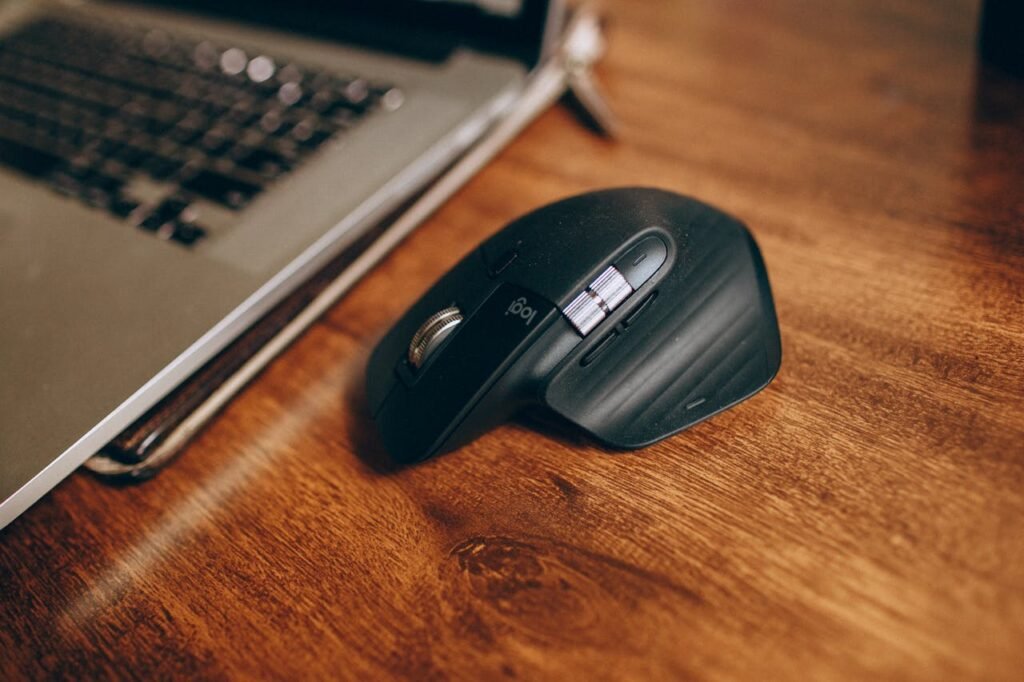
Comparing Ergonomic vs. Standard Mice
When deciding whether to upgrade your desk setup, it helps to see the data side-by-side. The following table highlights the key differences between traditional mice and ergonomic alternatives.
| Feature | Standard Mouse | Ergonomic Mouse |
|---|---|---|
| Hand Position | Flat (Pronated) | Neutral (Handshake or Arched) |
| Muscle Strain | High forearm and wrist tension | Low to moderate tension |
| Primary Movement | Wrist flicking | Whole arm or thumb rotation |
| Adaptation Period | None | 2 to 7 days |
| RSI Prevention | Minimal | High |
Key Features to Consider Before You Buy
To ensure you choose a device that truly supports your health, look beyond the aesthetic and focus on functionality. The Health and Safety Executive (HSE) recommends that workstation equipment should be adaptable to the user’s needs.
- Size and Fit: An ergonomic mouse that is too large or too small will cause you to cramp your hand. Measure your hand from the base of the palm to the tip of your middle finger to find the right size.
- DPI Settings: DPI (Dots Per Inch) determines how sensitive the mouse is. High DPI settings allow you to move the cursor across the screen with minimal physical movement, which is better for joint health.
- Wireless Connectivity: Opting for wireless connectivity reduces desk clutter and allows you to position the mouse exactly where it feels most comfortable without the tension of a cable.
- Customisable Buttons: Many ergonomic models allow you to programme buttons for common tasks like “copy” or “paste,” reducing the number of repetitive clicks required.
Maintaining Long-Term Hand Health
While a high-quality mouse is a game-changer, it is only one part of the puzzle. To truly protect yourself from tendonitis and other chronic issues, you must look at your overall desk setup. The Arthritis Foundation emphasises that joint protection involves regular movement and proper posture.
Consider the following tips to complement your new hardware:
- Keep your elbows at a 90-degree angle.
- Take frequent breaks to perform wrist exercises, as suggested by Healthline.
- Ensure your monitor is at eye level to prevent neck strain.
- Utilise a wrist rest only for support during breaks, not while actively typing or mousing.
Professional advice from organizations like the Chartered Institute of Ergonomics and Human Factors suggests that even the best equipment cannot compensate for sitting in the same position for hours on end.
The Bottom Line
Investing in an ergonomic mouse is a proactive step toward a pain-free professional life. Whether you choose a vertical design to fix your posture or a trackball to save your wrist from unnecessary travel, the goal is the same: working in harmony with your body rather than against it. For more information on managing hand pain, consult resources like Verywell Health or the Cleveland Clinic.
Frequently Asked Questions (FAQs)
Does an ergonomic mouse actually help with carpal tunnel?
Yes. While it may not “cure” existing damage, an ergonomic mouse reduces the pressure on the median nerve by promoting a neutral wrist position. This can alleviate symptoms and prevent the condition from worsening. Experts at the AAOS recommend ergonomic adjustments as a first line of defense against workplace injuries.
How long does it take to get used to a vertical mouse?
Most users find that it takes between two days and a full week to feel completely comfortable. Because the grip styles are different from what you are used to, your brain needs a little time to recalibrate its “muscle memory.” Once adapted, most people report they would never go back to a standard mouse.
Are ergonomic mice only for people already in pain?
Absolutely not. Prevention is the best medicine. Utilising ergonomic productivity tools before you develop symptoms is the most effective way to ensure long-term health. As highlighted by the Mayo Clinic, setting up an ergonomic workspace is beneficial for everyone, regardless of their current pain levels.
Is a trackball or a vertical mouse better?
It depends on your specific needs. A vertical mouse is generally better for wrist pain and forearm tension. A trackball mouse is often superior for those with shoulder or elbow issues, as it requires zero arm movement. Consulting a specialist in ergonomic design, such as those at ScienceDirect, can help you decide based on your specific biomechanics.